
Importing Favorites
Step 1: Click the Favorites icon

Step 2: Click the 3 horizontal dots

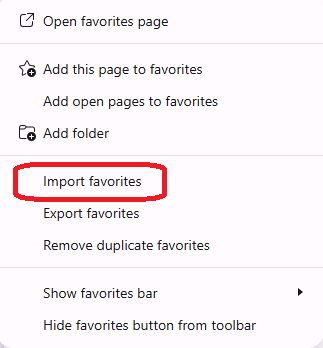
Step 3: Click ExportImport Favorites
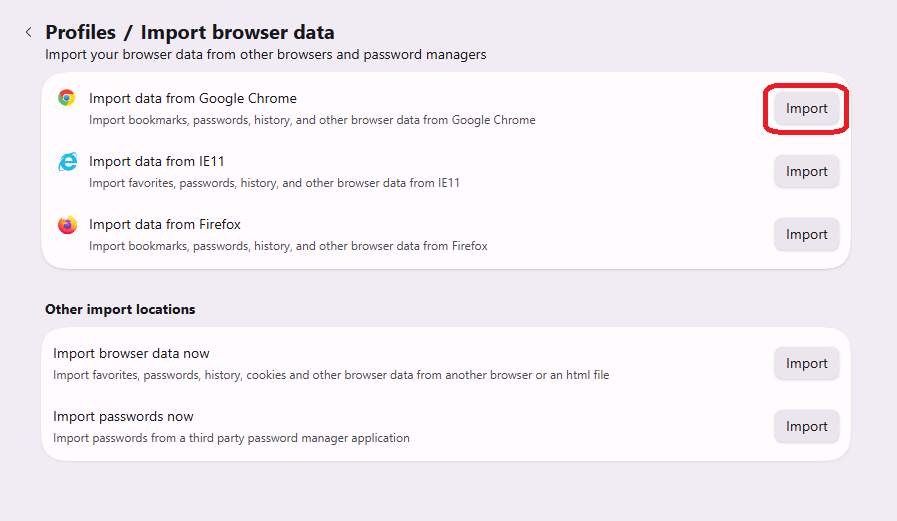
Step 4: ChooseClick yourImport file name and locationnext to saveImport toData from Google Chrome
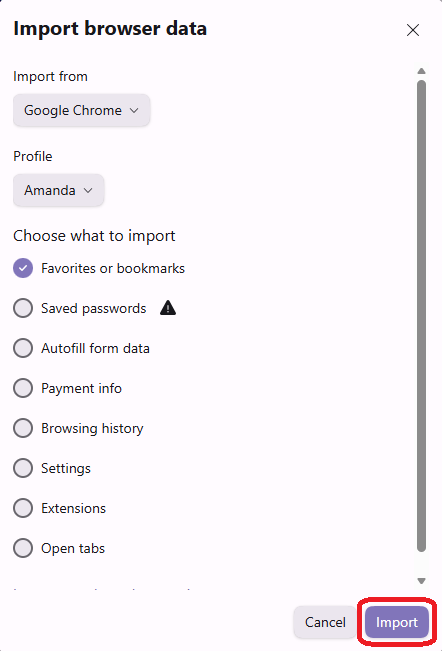
Step 5: Uncheck all boxes but Favorites/Bookmarks and Click SaveImport
If this doesn't pull in all of your bookmarks from Chrome they will need to be manually exported from Chrome and then imported to Edge.