
Importing Favorites
Step 1: Click the Favorites icon

Step 2: Click the 3 horizontal dots

Step 3: Click Import Favorites
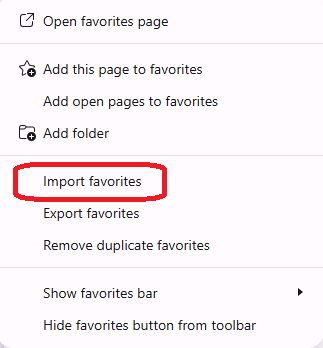
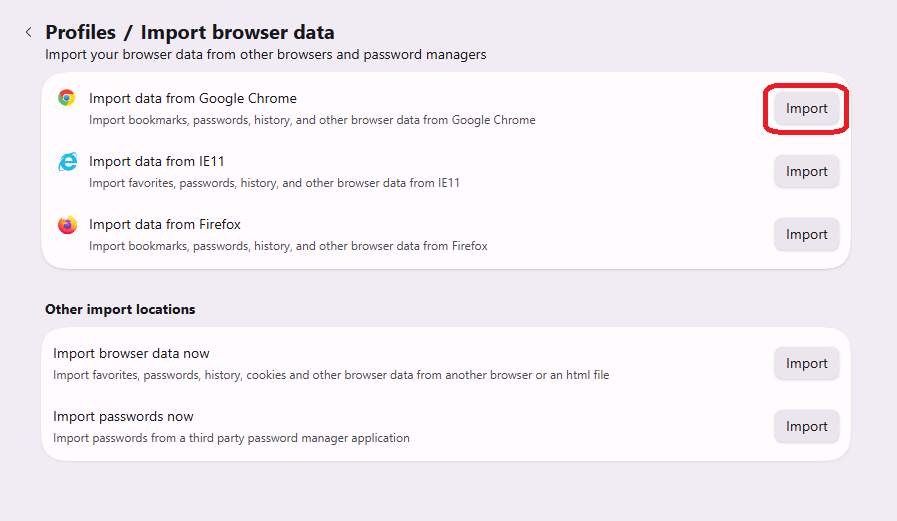
Step 4: Click Import next to Import Data from Google Chrome
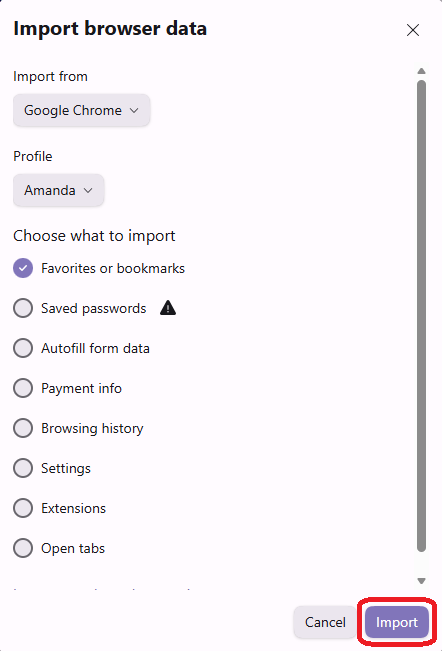
Step 5: Uncheck all boxes but Favorites/Bookmarks and Click Import
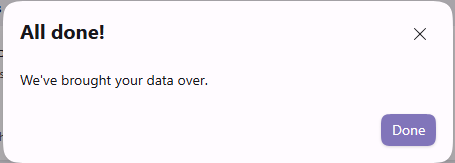
Step 6: Click Done
NOTE: If this doesn't pull in all of your bookmarks from Chrome they will need to be manually exported from Chrome and then imported to Edge. Please see Exporting Bookmarks - Chrome it will open in a new tab and then come back hereto this tab to finish manually importing them below.
Manually Importing Bookmarks
Step 1: Click the Favorites icon
Step 2: Click the 3 horizontal dots
Step 3: Click Import Favorites
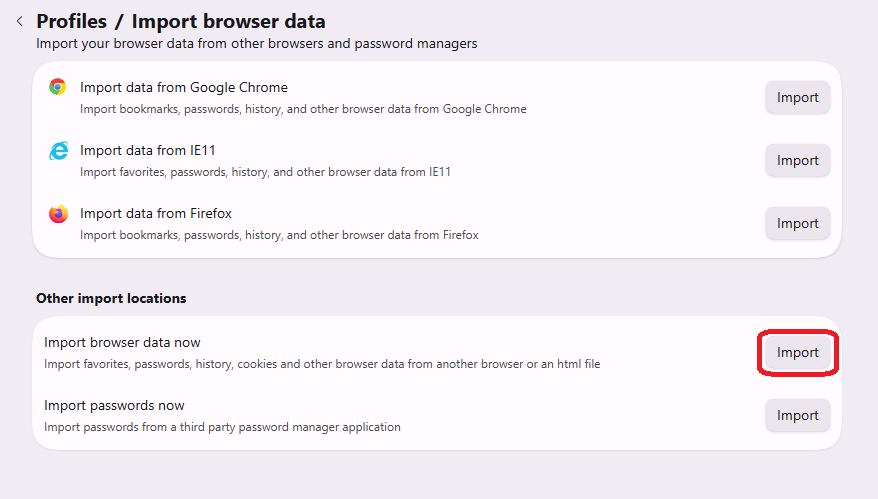
Step 4: Click Import next to Import browser data now
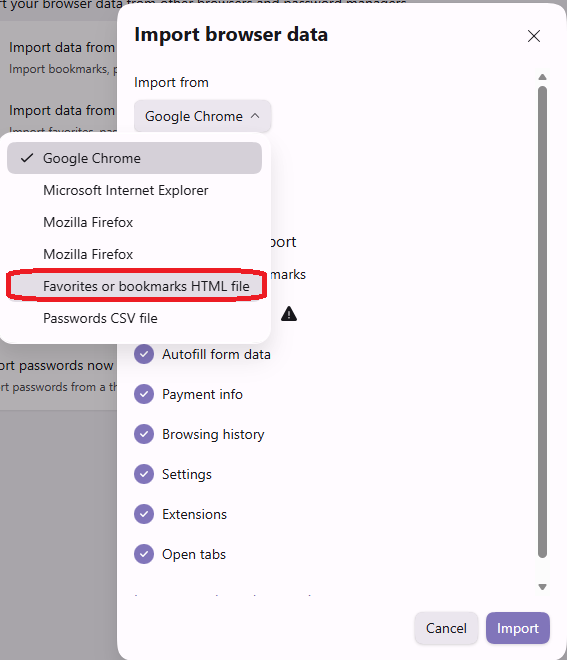
Step 5: Open the Import from drop-down menu and Choose Favorites or bookmarks HTML file
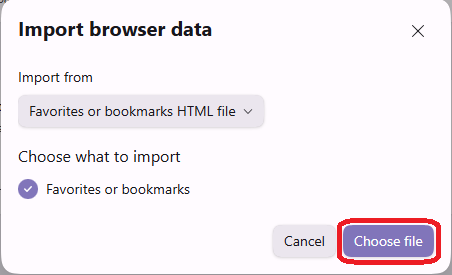
Step 6: Click Choose file
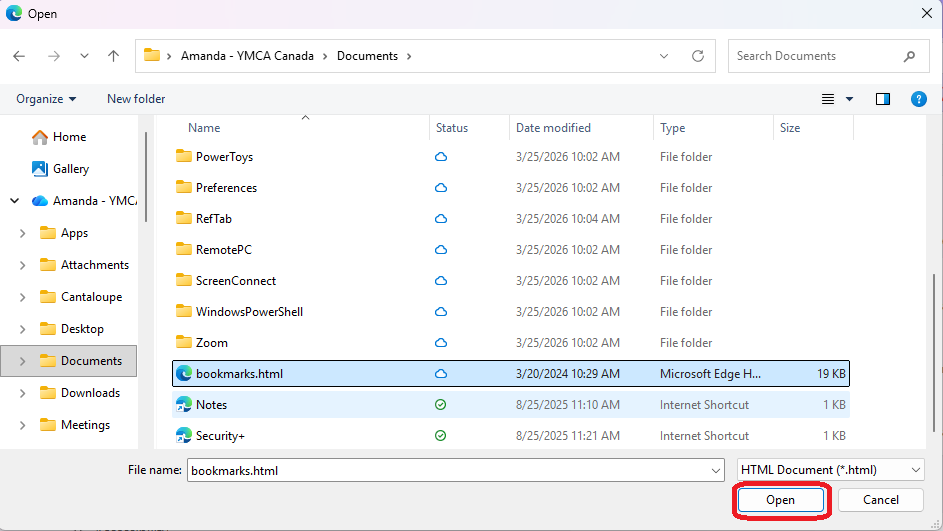
Step 7: Find your previously saved bookmarks file and Click Open
Step 8: Click Done