Setting up the Authenticator App on a new device (Computer Required)
This setup will only work if you're able to sign-in successfully to your email account.
*If you are locked out of your account due to MFA please have your manager fill out this form to have your methods reset: People Leader Password/MFA Reset Form
Step 1. From a computer visit My Sign-Ins | Security Info | Microsoft.com
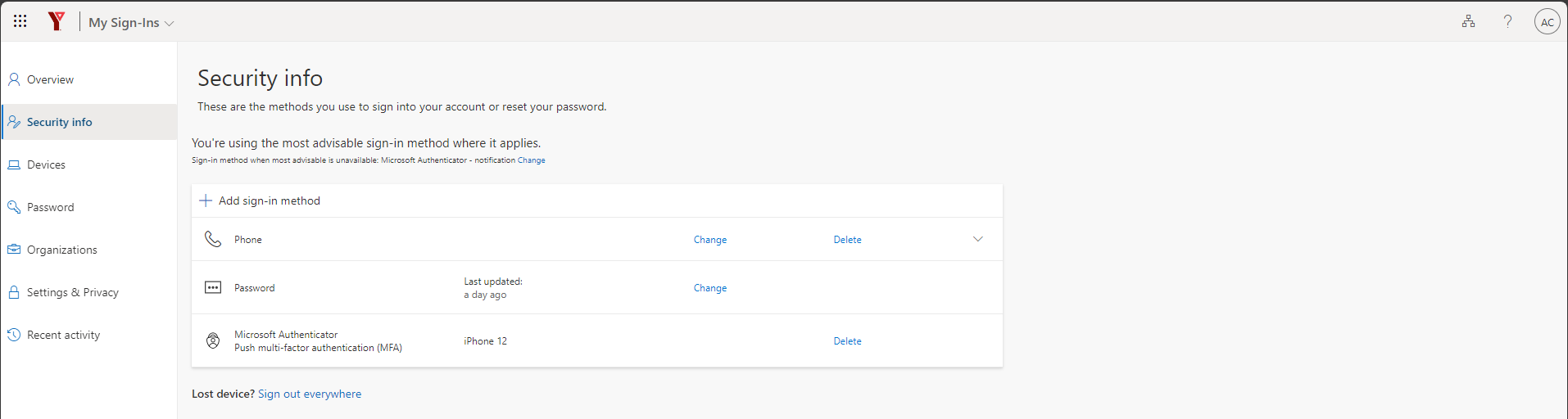
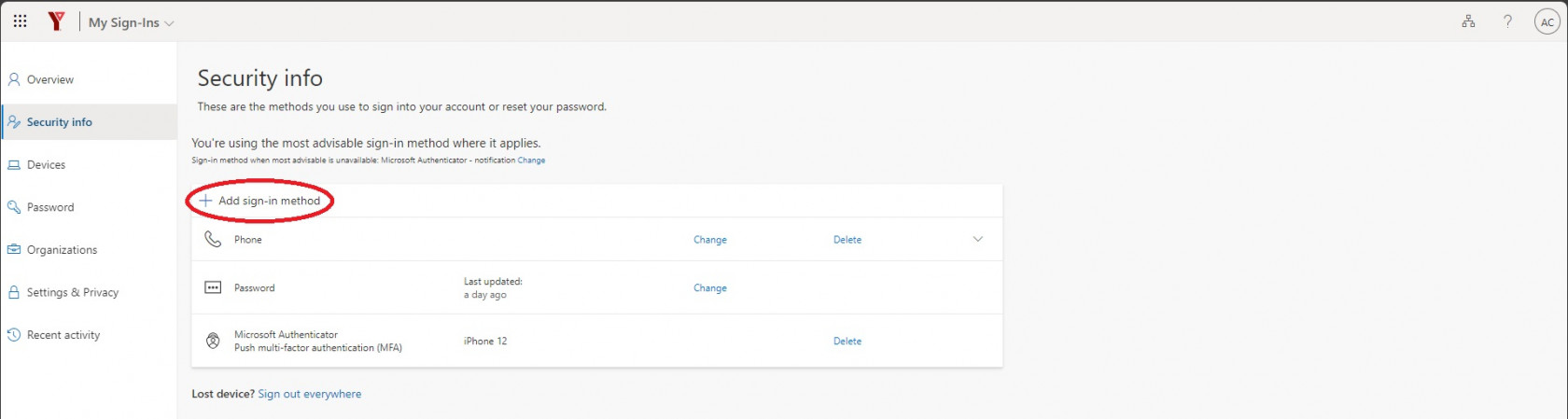
Step 2. Click +Add sign-in method
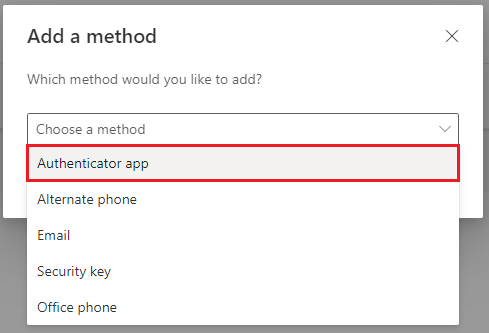
Step 3. Choose the Authenticator App
Step 4. Click Add
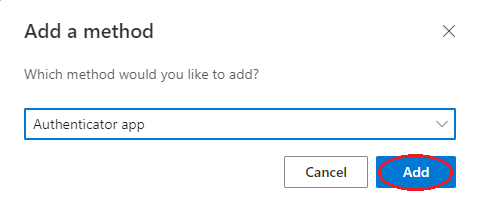
Step 5. Click Next
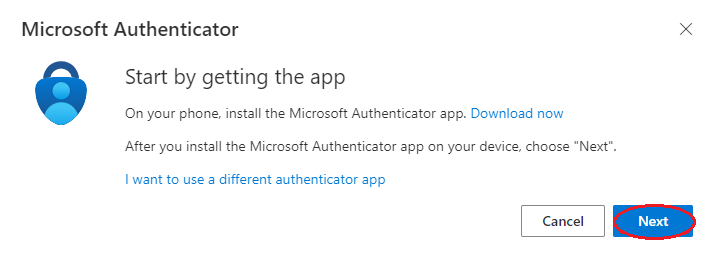
Step 6. Click Next
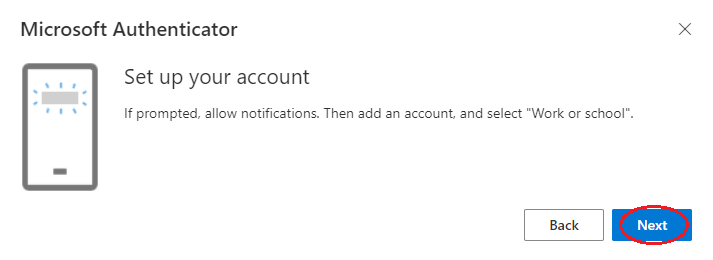
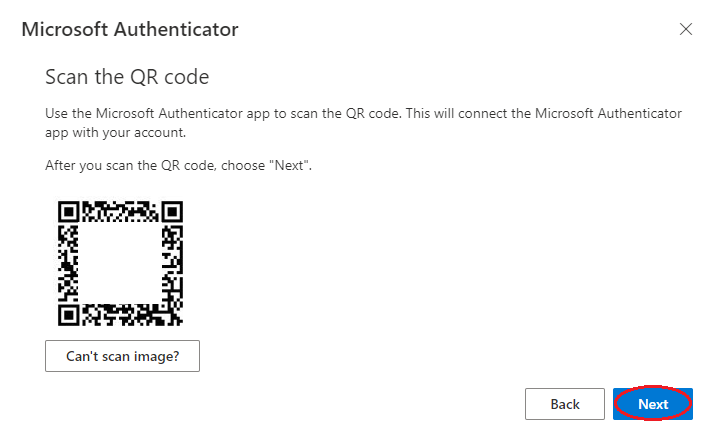
You should now see instructions for Scanning the QR Code
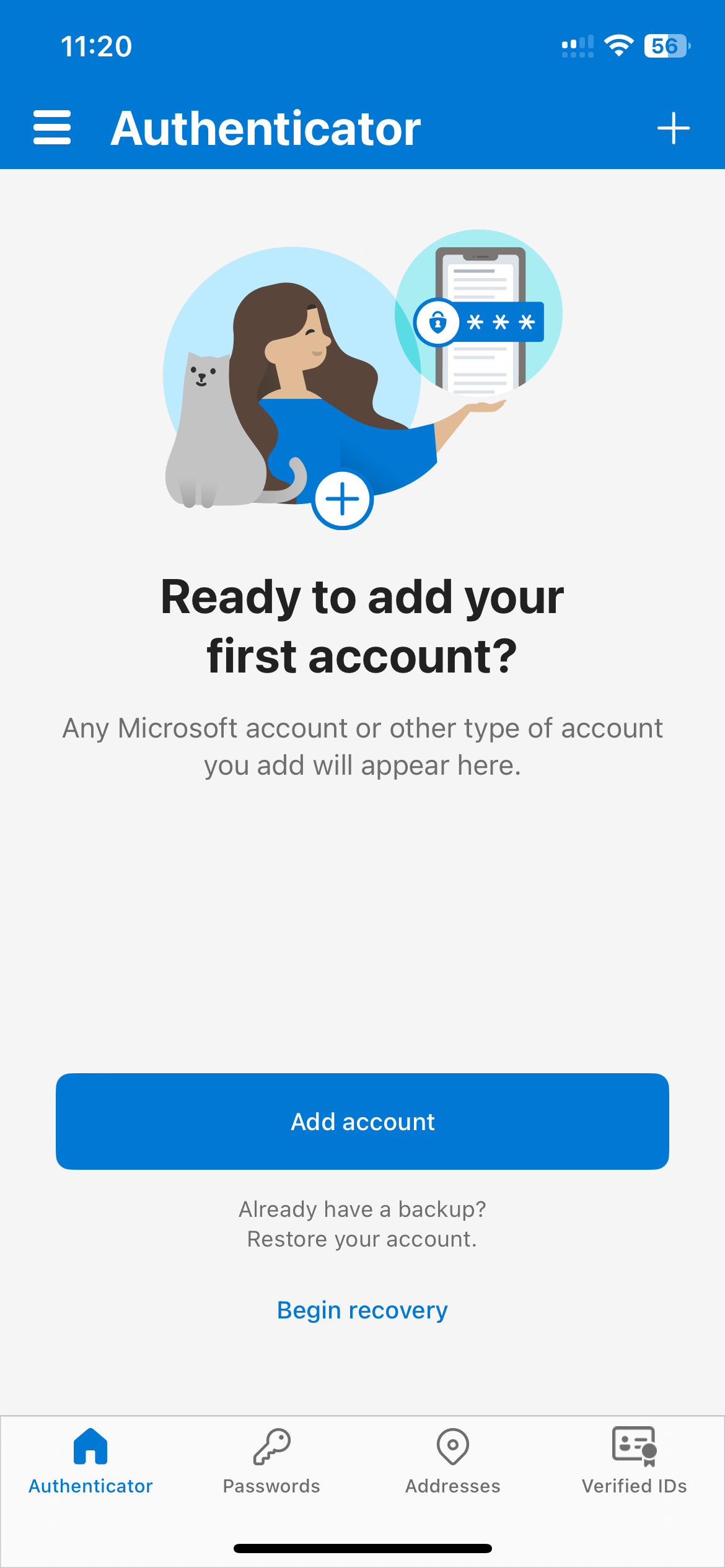
Step 7. From your Phone Open the Authenticator App - Click + or Add Account
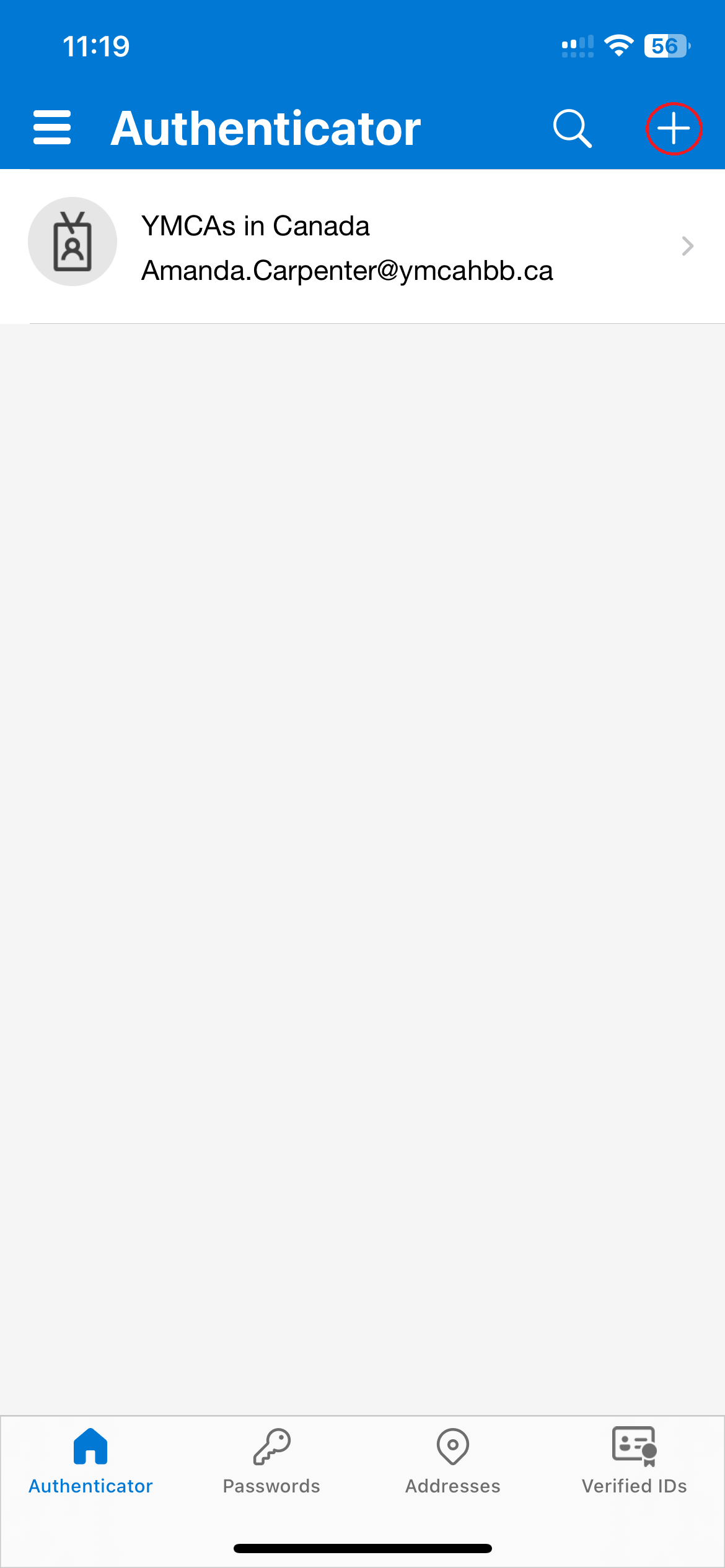
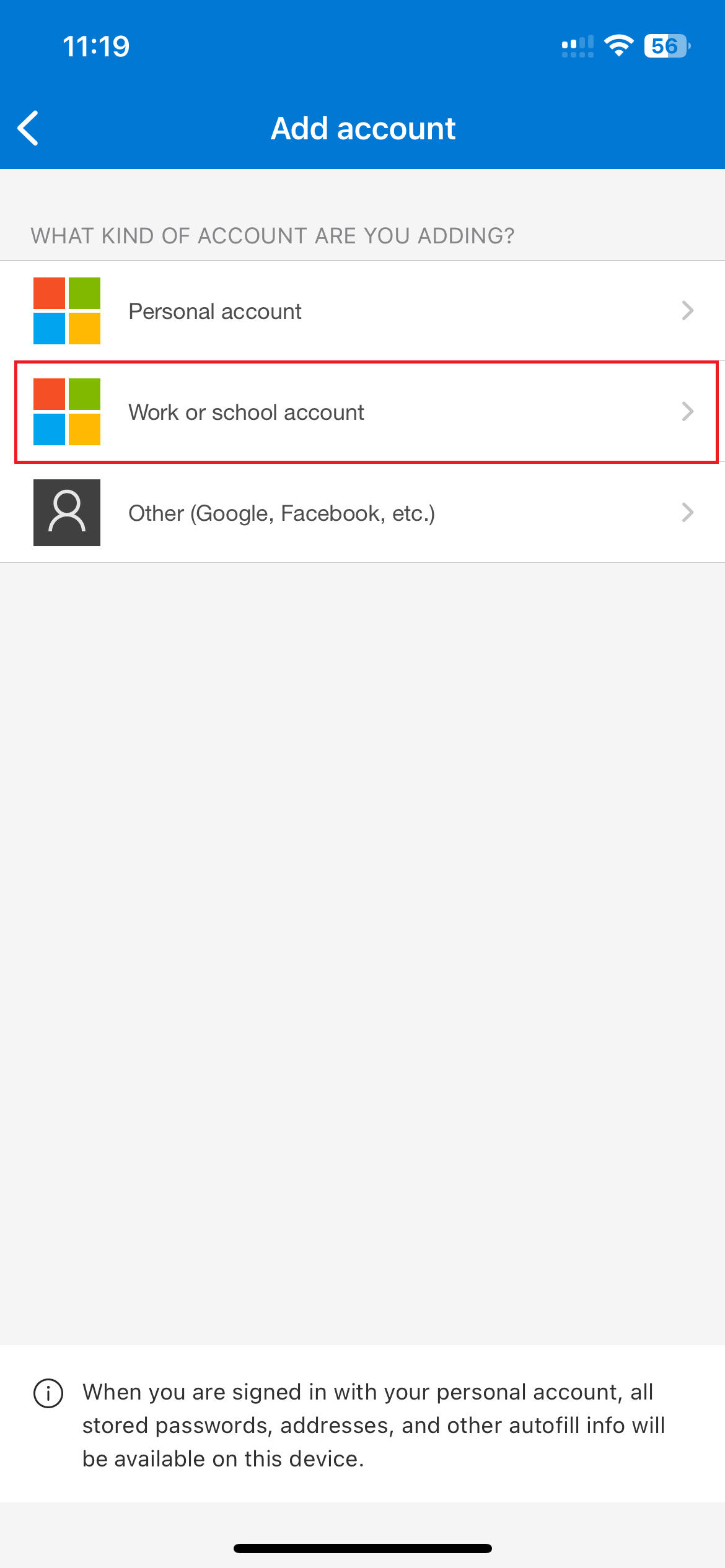
Step 8. Click Work or school account
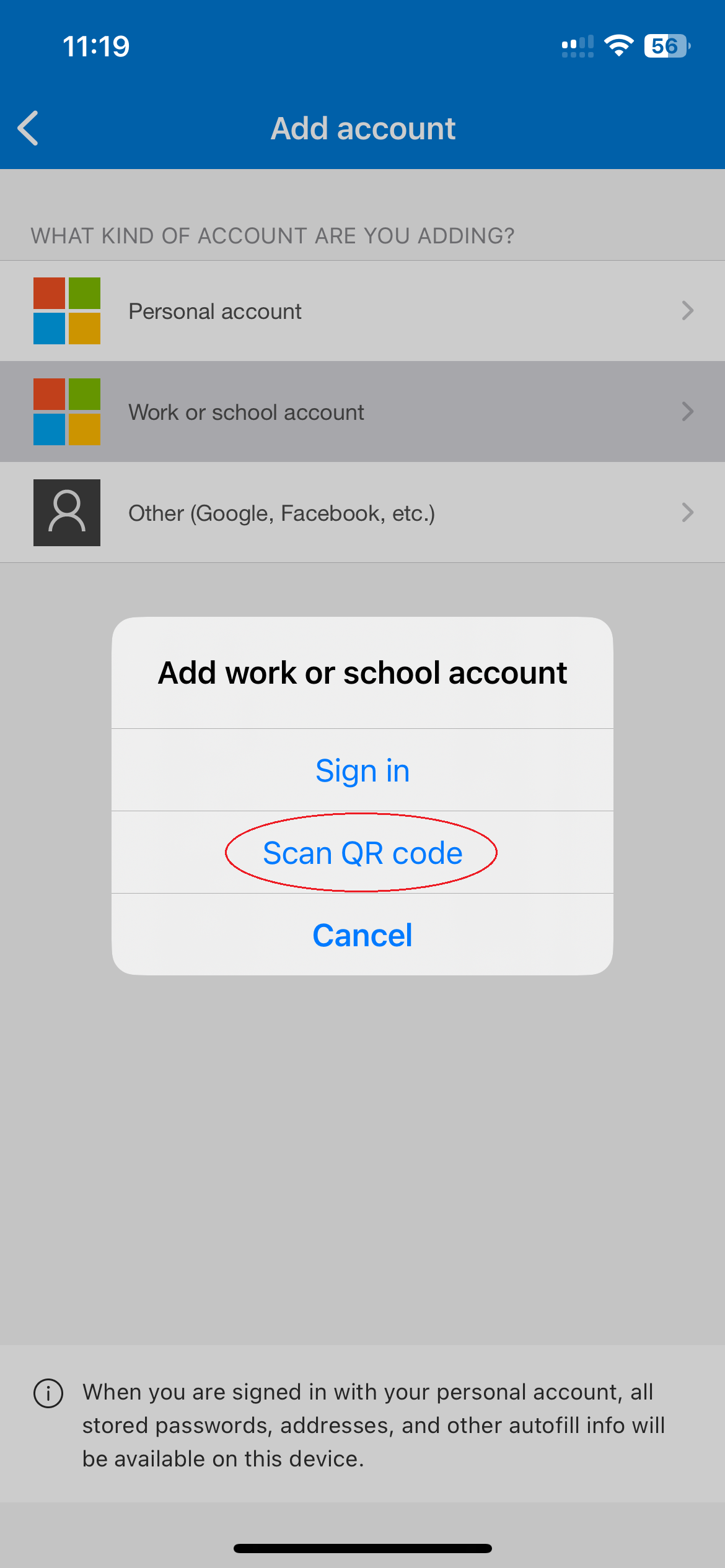
Step 9. Click Scan QR Code
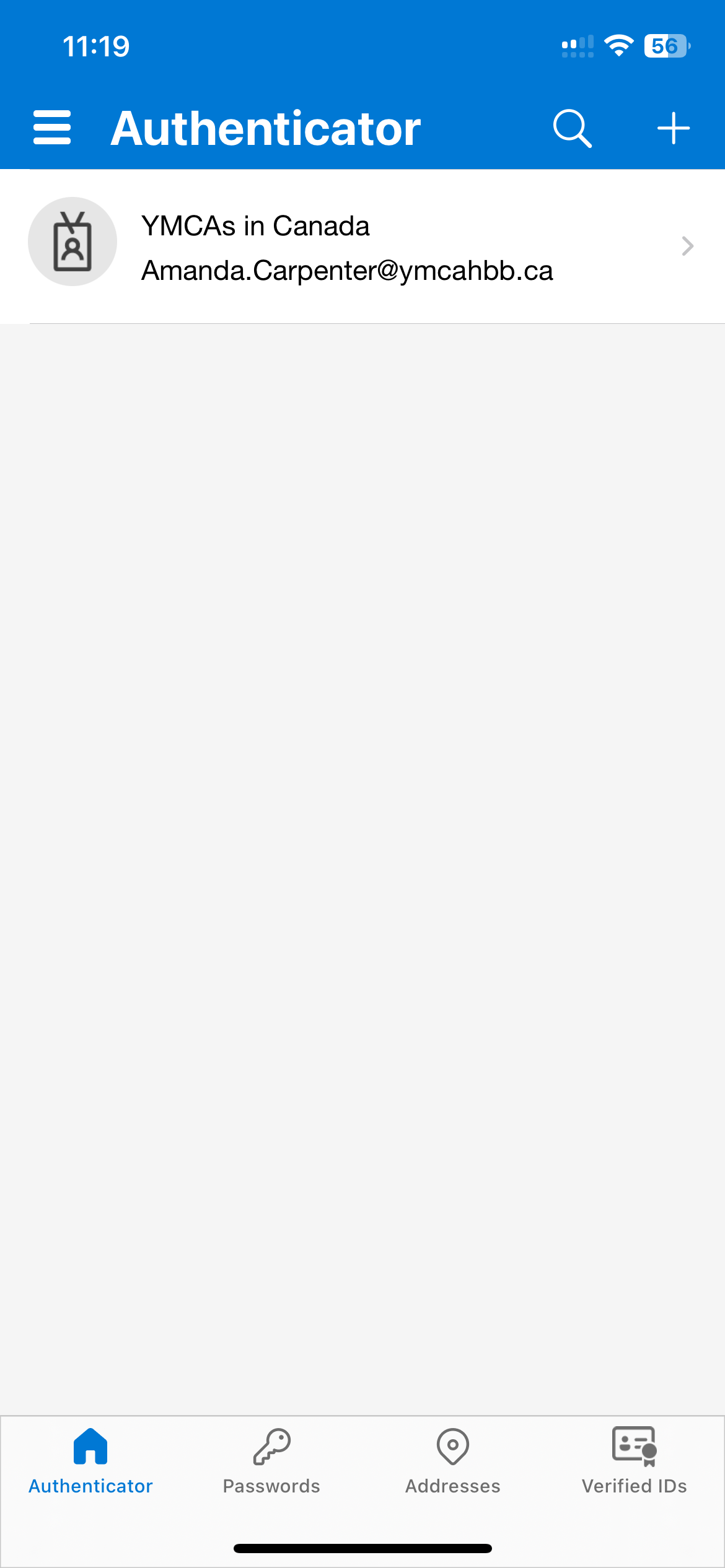
Step 10. Scan the code displaying on the computer, you should see the account listed on your phone once successfully scanned
Step 11. Back on the computer Click Next
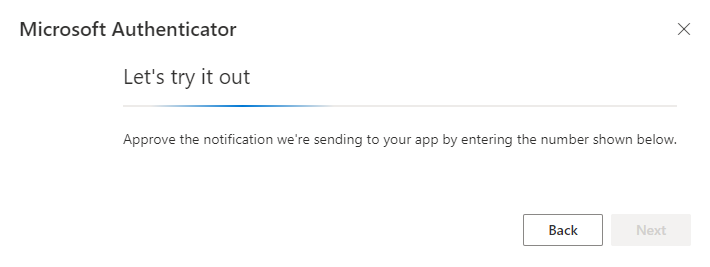
Step 12. Verify the MFA prompt by entering the number shown on screen in the app
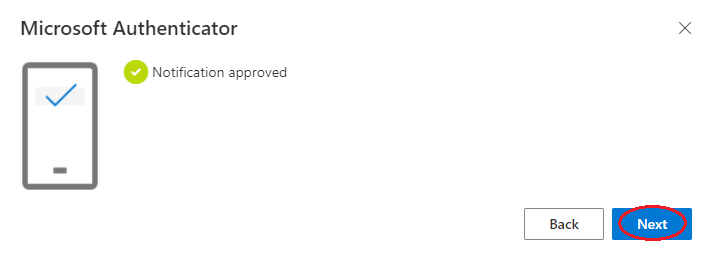
Step 13. Success - Click Next to exit the prompt
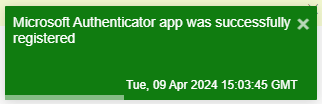
You may notice this pop-up briefly in the top right confirming the app was successfully added to your methods.