
Setting Calendar Out of Office
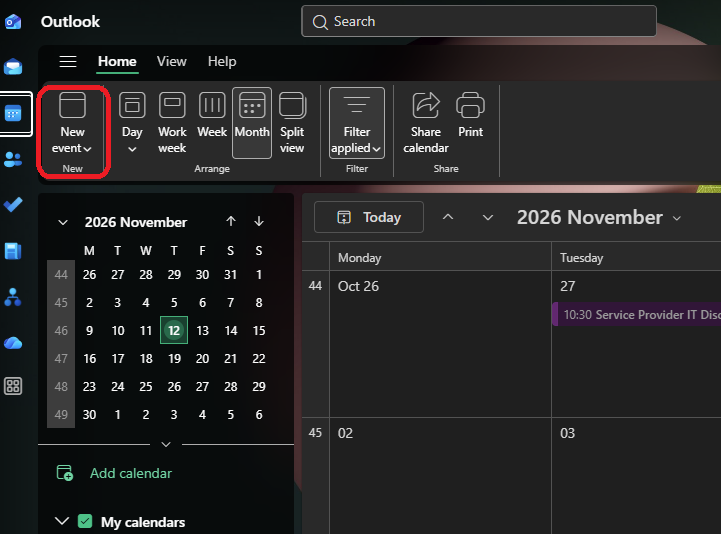
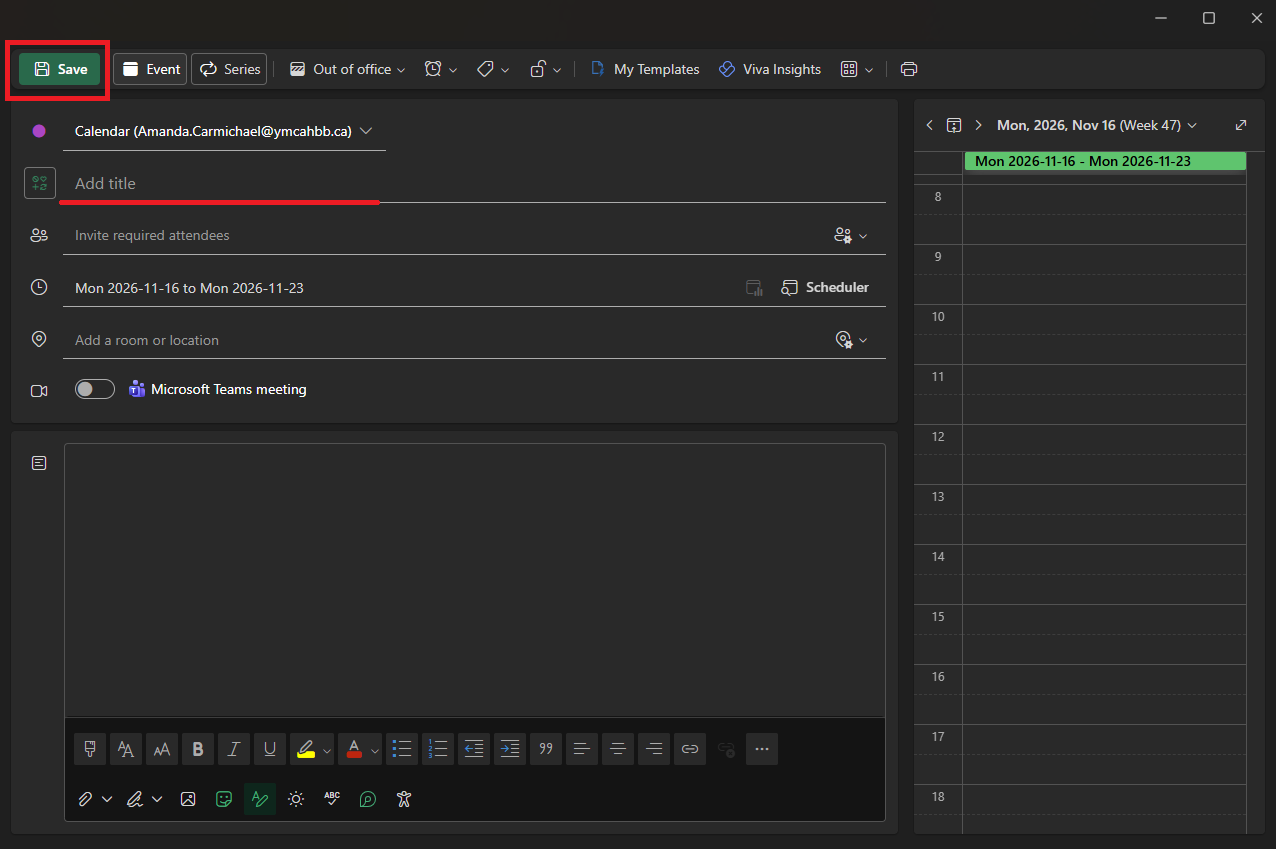
Step 1: From the Calendar tab in Outlook Click New event
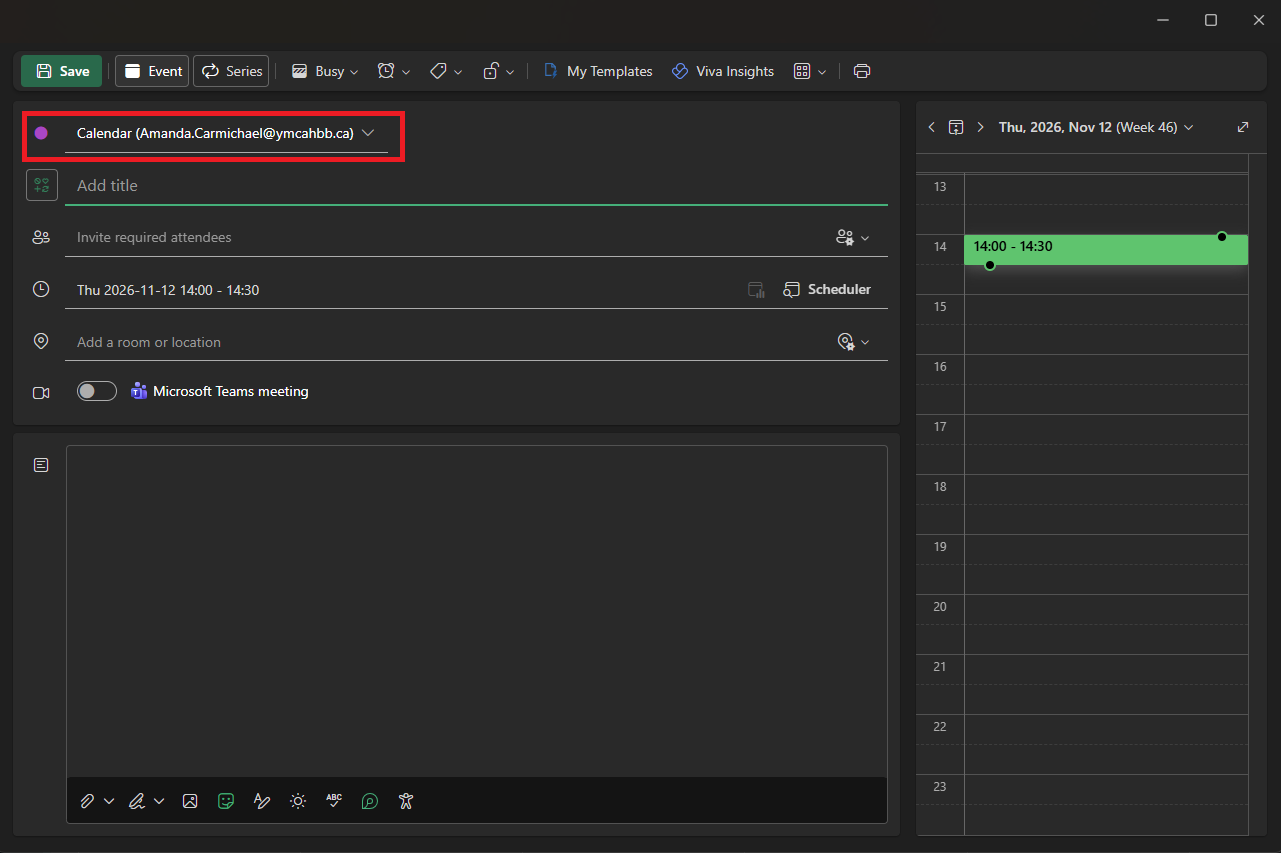
Step 2: Verify the right calendar is selected
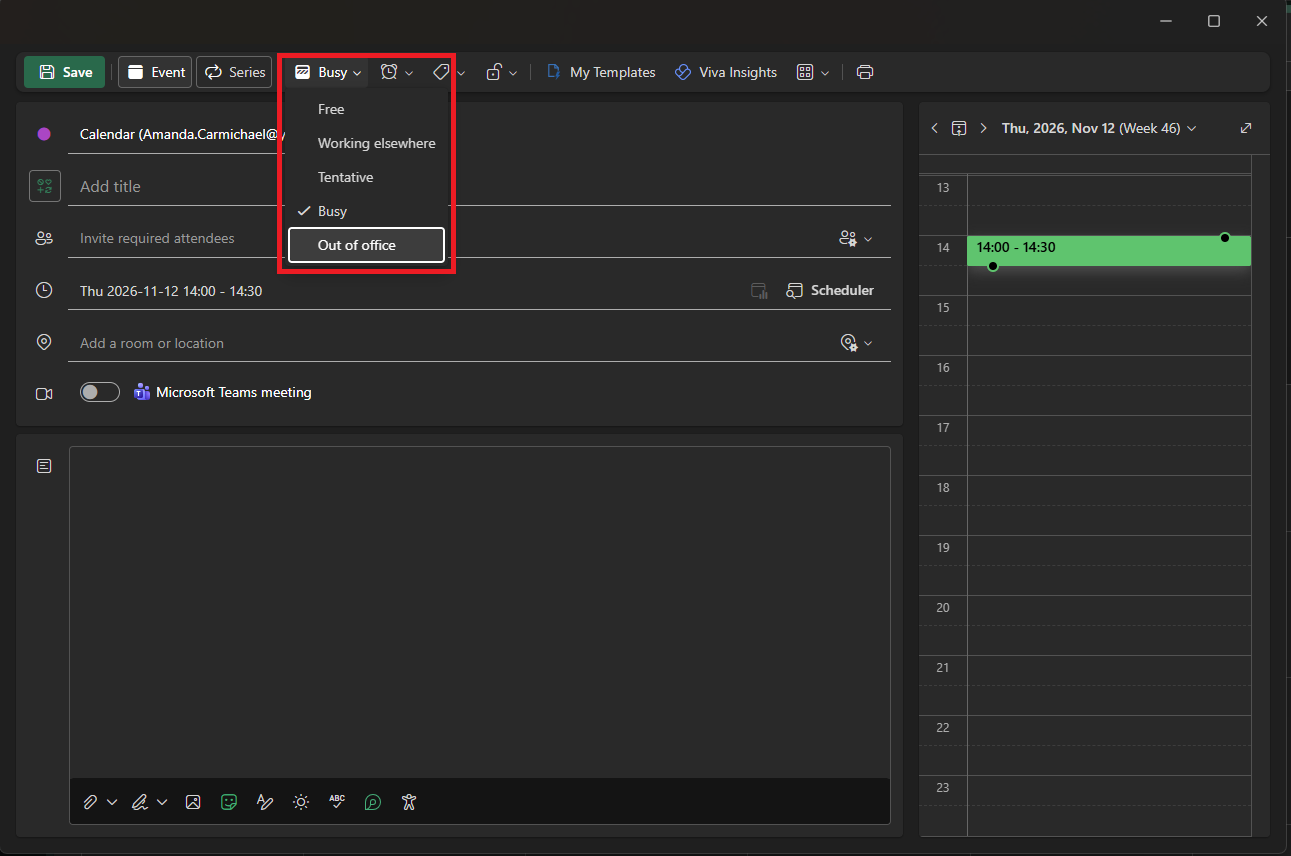
Step 3: Click into the drop-down menu on the top toolbar to choose Out of Office
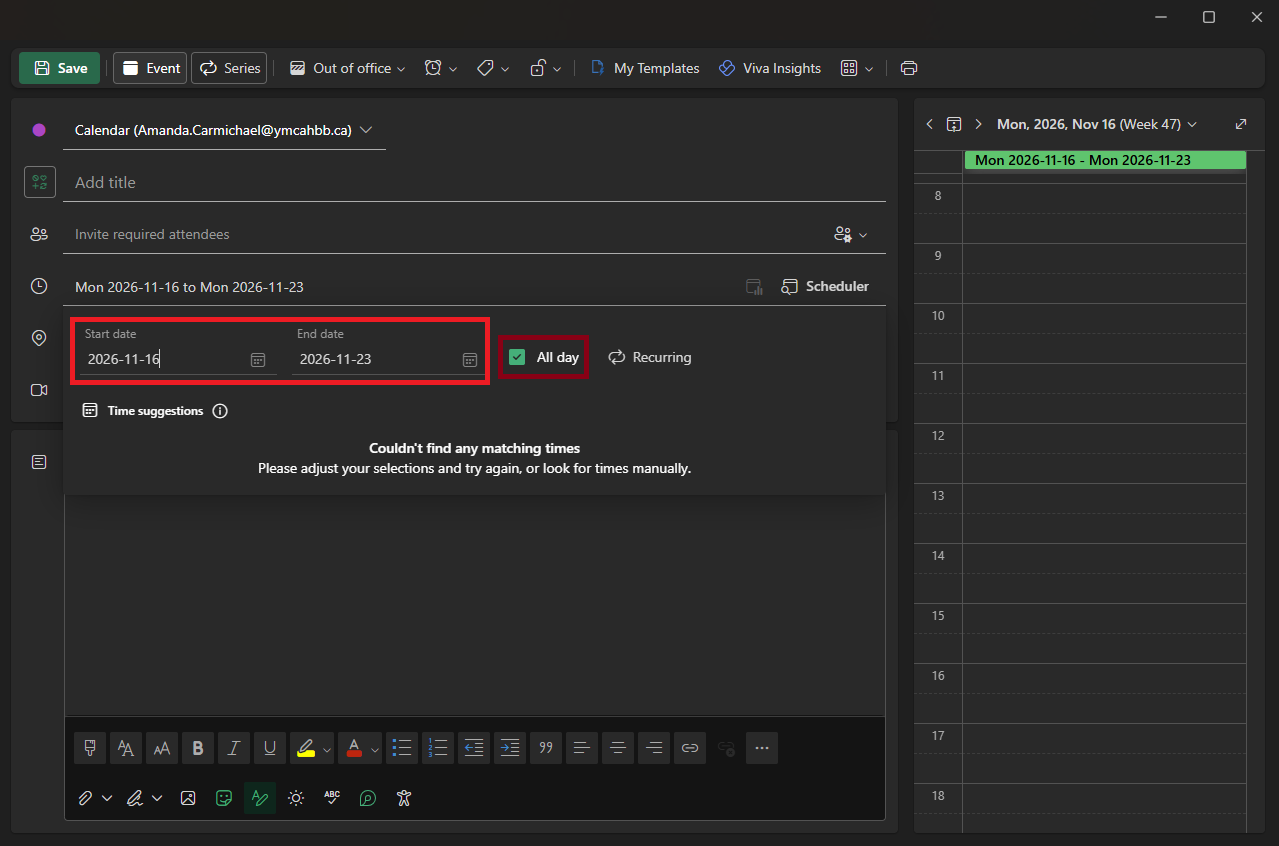
Step 4: Input your start and end dates - make sure to select the All day checkbox
Step 5: Enter a title and click Save
NOTE: If you already have an automatic reply message set adding out of office dates to your calendar will automatically use that previously saved response. To update or set your automatic reply message please see our How to add Automatic Replies guide